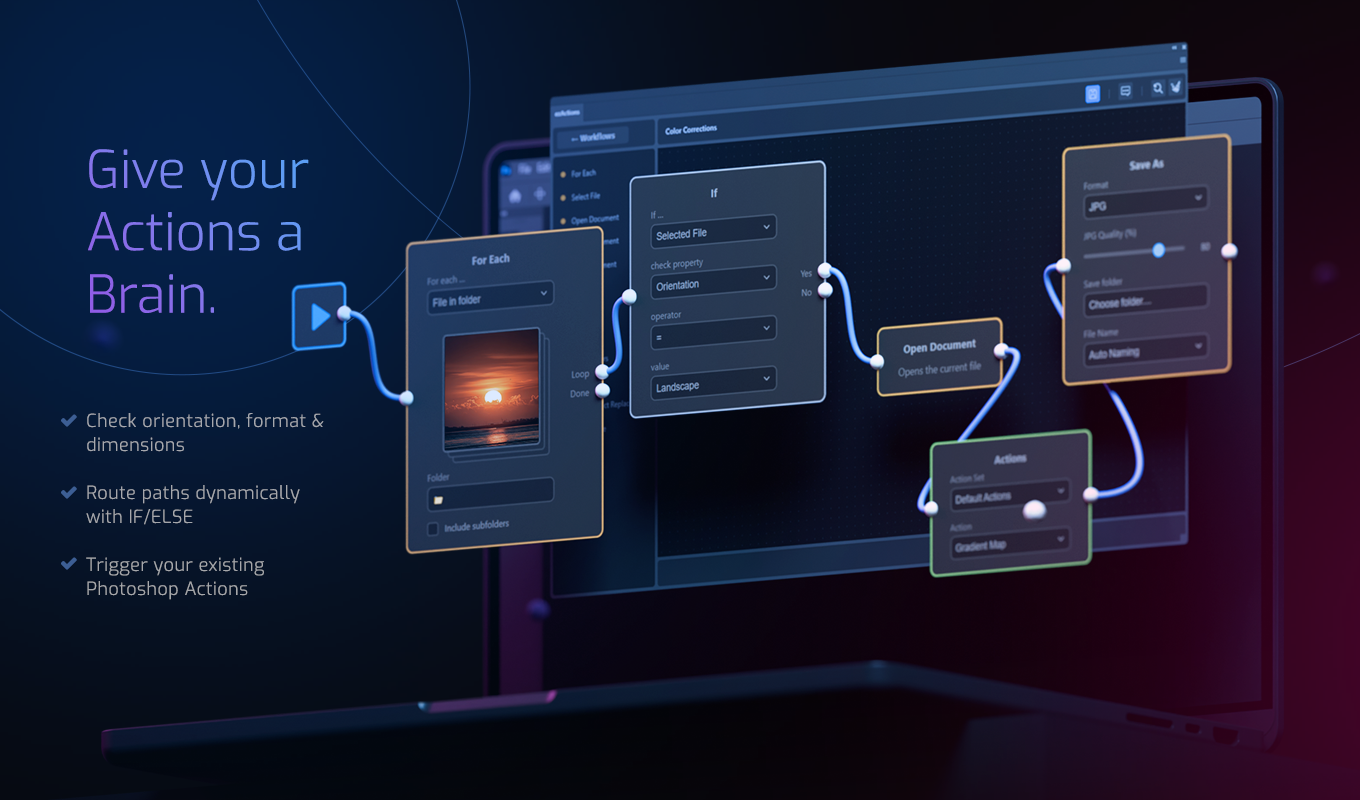
ezActions Plugin — Visual Automation for Adobe Photoshop Without Coding
Tired of rigid, linear actions that break the moment a layer is named differently?
ezActions is a revolutionary, node-based Photoshop automation plugin that bridges the gap between simple actions and complex scripting. Create intelligent, dynamic workflows through a visual interface—without writing a single line of code. Stop guessing what a script does and start building automation you can actually see and understand. Save time on technical repetition and focus entirely on design.
Build it visually. Validate it before it runs. Automate entire folders, mockups, exports, and Photoshop Actions from one reusable workflow.
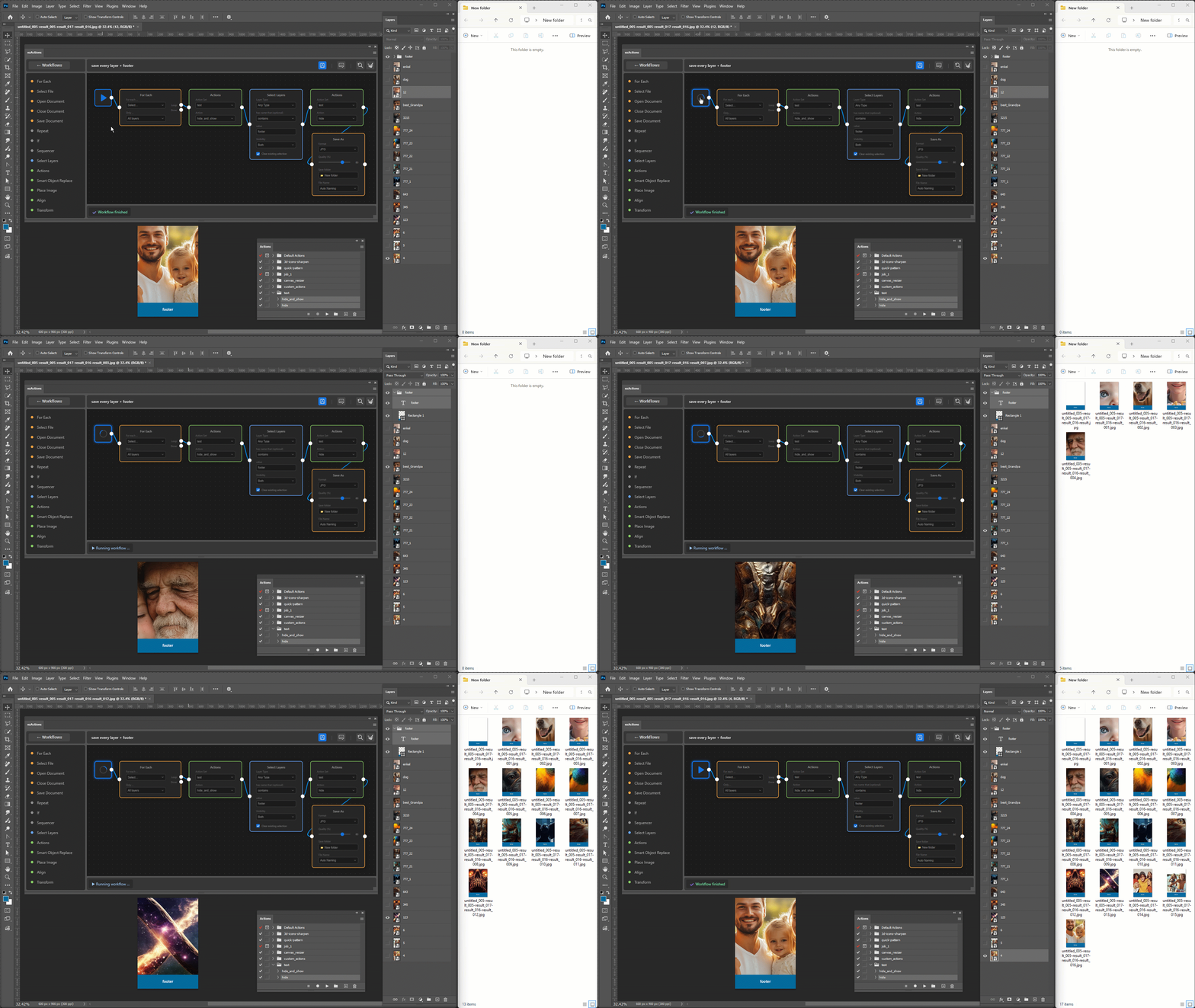
See ezActions in action: Watch how to batch replace Smart Objects and automate your entire mockup workflow visually—without writing a single line of code.
Key Features of Our Photoshop Automation Plugin
✔️ Visual Logic & Zero Syntax
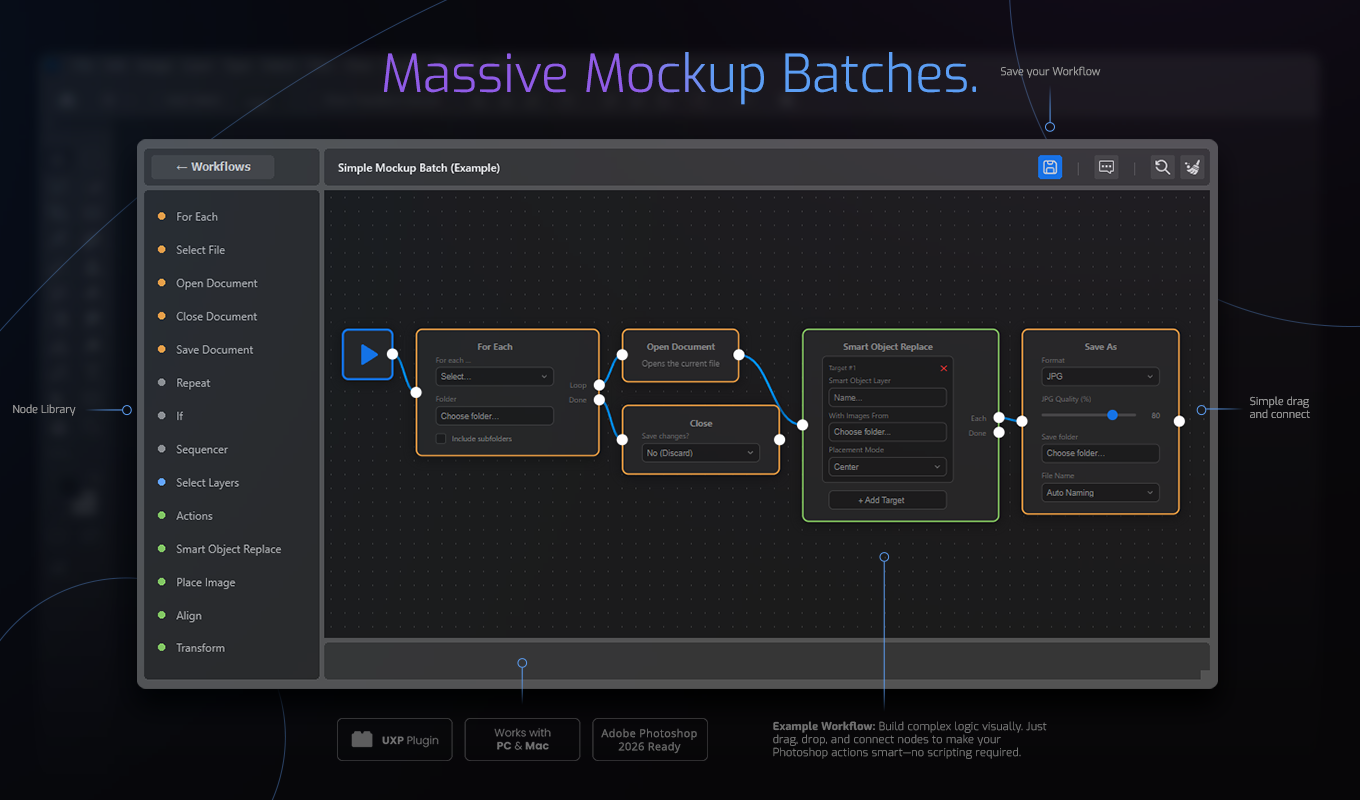
Stop writing code. Build workflows by connecting nodes like a mind map. Drag nodes directly from the sidebar onto the canvas, connect them, copy and paste steps, or select and move entire groups at once. Connections can be moved, reconnected, or removed quickly, making even larger workflows fast to build and easy to reorganize. You maintain a clear overview of complex automation sequences without dealing with code or syntax errors.
✔️ Built-In Workflow Validation
Build with confidence. ezActions checks your workflow before it runs and clearly highlights missing or invalid settings. Broken fields are marked directly in the interface, and errors in the bottom bar can be clicked to jump straight to the affected node. This makes configuration problems easier to find and fix before processing large batches of files.
✔️ Workflows That Think (If/Else Conditions)
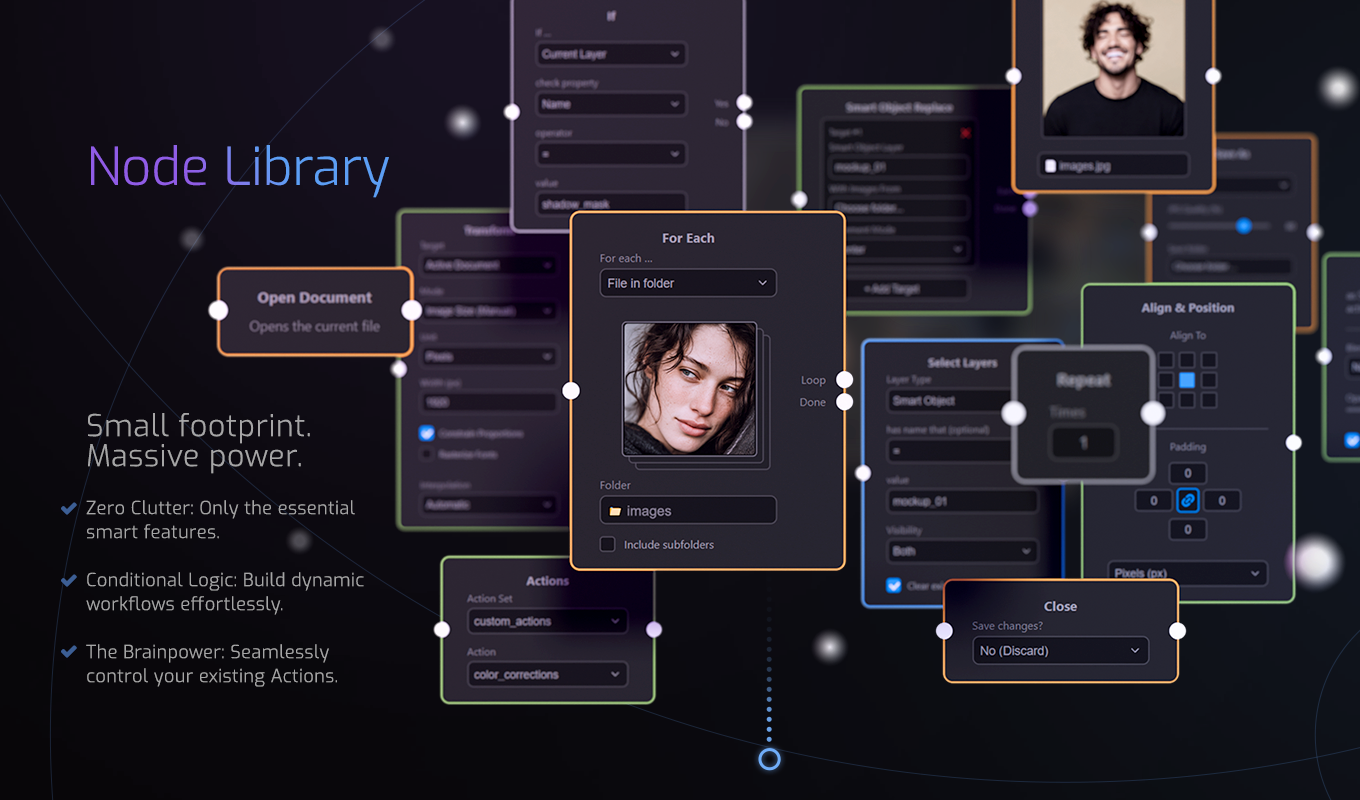
Standard Actions are blind—they just repeat steps. ezActions checks your images first. Use intelligent conditions to execute steps only when specific criteria are met. Is the image too small? Is it a text layer? The workflow adapts instantly.
✔️ Total Context Awareness
Don’t just edit “everything.” Tell Photoshop to only touch layers named “Shadow” or only export visible folders. Access specific document details and metadata that normal tools simply can’t reach.
✔️ Advanced Batch Processing & Dynamic Export
Effortlessly process massive amounts of files. Using the powerful “For Each” node, you can iterate through entire folder structures—including all subfolders—checking every image against your specific criteria before applying changes. Flexible Save As naming lets you build filenames from input files, artwork, custom text, and other filename parts while keeping generated filenames safe and organized.
✔️ Flexible Save As Naming
Create clear, structured filenames directly inside your workflow. Build filenames from draggable parts such as the input file name, artwork name, and custom text. This makes large export jobs easier to organize and is especially useful for automated mockup production and multi-artwork workflows.
✔️ Integrate Existing Actions
You don’t have to start from scratch. Seamlessly integrate your existing, standard Photoshop Actions into this flexible Photoshop automation plugin to give them new life and logical control.
✔️ Built-In Help Where You Need It
Node tooltips explain important settings directly inside the workflow editor, helping you understand available options without constantly leaving the plugin to search through documentation.
Popular Workflows You Can Build in Minutes
Because ezActions is fully modular, you can combine nodes to solve almost any Photoshop problem.
Here are a few real-world use cases our users automate every day:
✔️ The “Smart Social Media Prep” (Intelligent Resizing)
Nodes used: For Each ➔ If (Orientation) ➔ Transform ➔ Save As
Feed it a folder of mixed images. The workflow checks if an image is portrait or landscape, resizes it perfectly using the “Long Edge” logic, adds a watermark in the bottom right corner, and exports it as an optimized WebP for your website. Dynamic Save As options help keep every exported filename organized automatically.
✔️ The “Bulk Mockup Generator” (Automated Smart Object Replacement)
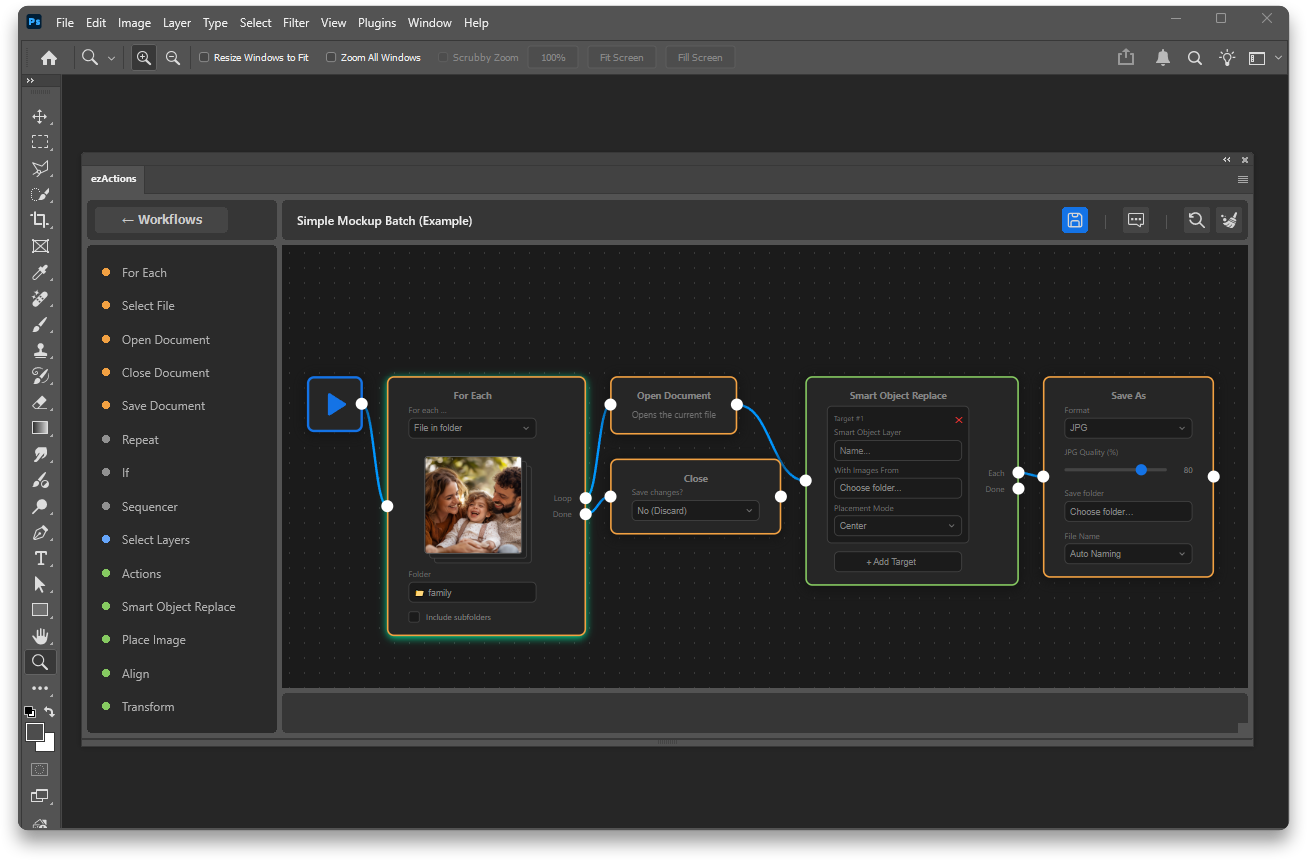
Nodes used: For Each ➔ Open Document ➔ Smart Object Replace ➔ Save As
Select your PSD mockups and artwork, then let ezActions replace Smart Objects and generate finished files automatically. The workflow finds the target Smart Object, replaces the artwork, fits it inside the required bounds, and exports the result. Build filenames dynamically from the mockup, artwork, or multiple filename parts so exported files remain clear and organized even across large batches.
For example:
shirt_mockup.psd + design_red.png
→ shirt_mockup-design_red.jpg
Smart Object Replace workflows also support more reliable artwork-based naming, making it easier to generate consistent filenames when working with one or multiple artwork files.
✔️ The “Document Cleanup & Alignment”
Nodes used: Select Layers ➔ Align ➔ Action
Tell the plugin to find all layers named “Logo” or of the type “Text”, align them perfectly to the center with a 50px padding, trigger your existing “Color Grade” Photoshop action, and save the final result.
How This Photoshop Automation Plugin Works
1️⃣ Open ezActions inside Photoshop
2️⃣ Drag & drop functional blocks (Nodes) directly onto your canvas
3️⃣ Link the Nodes to define the flow of information, conditions, and loops
4️⃣ Add your parameters, such as layer names, folders, file formats, conditions, or filename rules
5️⃣ Let ezActions validate your workflow and highlight anything that needs attention
6️⃣ Run the workflow and watch Photoshop intelligently process your files based on your exact visual map
Built-in validation helps catch configuration problems before processing begins, making complex workflows easier to build, debug, and run reliably.
Why Designers Love This Photoshop Automation Plugin
✔️ No coding required: The visual interface makes scripting tangible for everyone
✔️ Built-in validation: Find broken settings before running large batches
✔️ Faster workflow editing: Copy, paste, multi-select, and move groups of nodes at once
✔️ Flexible connections: Reconnect, move, or remove links directly on the canvas
✔️ Dynamic exports: Build filenames from input files, artwork, and custom naming parts
✔️ Highly adaptable: Processes dynamically adjust based on image data
✔️ Saves hours of manual checking: Automates tedious prep, mockup, and export work
✔️ Clear overview: Complex logic remains easy to read and edit on the visual canvas
✔️ Built-in help: Tooltips explain important node settings directly in the editor
✔️ Transforms Photoshop: Turns a simple editing tool into a high-performance productivity engine
Who It’s For
✔️ Graphic & Production Designers
✔️ Photographers & Retouchers
✔️ E-commerce & Product Editors
✔️ Agencies handling massive asset libraries
✔️ Mockup creators processing large artwork libraries
✔️ Creators who want the power of scripting without learning to code
If your creative process is constantly interrupted by technical repetition, ezActions will give you that time back.
Watch how it works – Example Workflows
Made for Creators, on Mac and PC
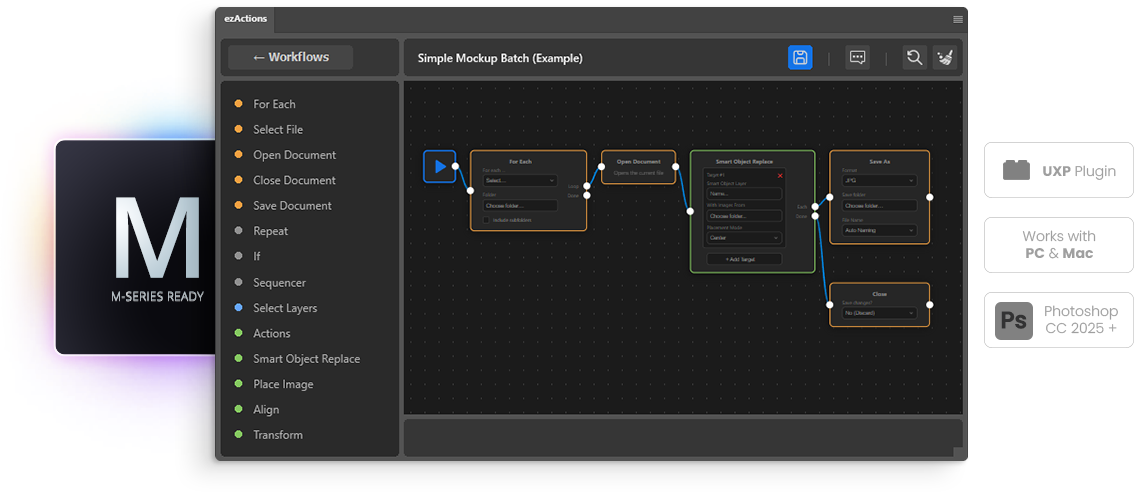
Built with modern Adobe UXP architecture, this plugin is fully compatible with Photoshop and is Photoshop 2026 Ready. It runs natively on Apple Silicon Macs, including the M1, M2, and M3 series, and delivers the exact same seamless, fast experience on Windows PCs. Whether you’re working on Mac or PC, you’ll enjoy stable, efficient, and visual performance.
Already activated installations also include a temporary offline license fallback, allowing users to continue working for up to 7 days if the license server is temporarily unavailable. License status can be checked directly from the plugin menu.
Workflow Management Made Easier
ezActions includes a built-in workflow browser for managing reusable automations. Switch between list and tile views depending on how you prefer to organize your workflows, open workflows quickly by double-clicking, and work with added protection against accidentally leaving workflows with unsaved changes.
Common Questions (FAQ)
✔️ Do I need to know how to code to use ezActions?
No, absolutely not. This Photoshop automation plugin is built entirely on visual logic. You just drag, drop, and connect nodes to create your workflow. Built-in validation and help tooltips also make it easier to understand and fix workflow settings directly inside the editor.
✔️ How do I know if my workflow is configured correctly?
ezActions checks your workflow before it runs. Invalid or missing settings are highlighted directly in the interface, and clickable errors can take you straight to the affected node so you can fix problems before processing your files.
✔️ Can I use my existing Photoshop Actions?
Yes! You can trigger your standard actions within the node workflow, adding intelligent conditions to them.
✔️ Is this better than standard Photoshop scripts?
Traditional scripts require you to know JavaScript or AppleScript, which can take months to learn. Our visual tool gives you similar automation flexibility through an intuitive drag-and-drop interface. You can see how your workflow is structured, edit individual steps visually, validate settings before running, and avoid dealing with syntax errors.
✔️ Can I create dynamic filenames when exporting?
Yes. The Save As node lets you build filenames from different parts such as the input file name, artwork name, and custom text. This is especially useful for batch processing and Smart Object mockup workflows where every exported file needs a unique and meaningful name.
✔️ Can ezActions automate Smart Object replacements?
Yes. Smart Object Replace workflows can automatically replace artwork inside PSD mockups and export the results in batches. Artwork-based naming can also be used to create organized filenames for the generated files.
✔️ Does it work on both Windows and macOS?
Yes, it works natively on both operating systems, ensuring a smooth experience regardless of your preferred platform.
✔️ Can ezActions handle subfolders during batch processing?
Absolutely. The integrated “For Each” node lets you iterate through massive folder structures and subfolders effortlessly.
✔️ What kind of workflows can I automate?
The possibilities are endless. You can automate watermarking, resizing based on aspect ratio, conditional layer renaming, complex exports for e-commerce, Smart Object replacements, mockup generation, dynamic file naming, document cleanup, alignment, and existing Photoshop Actions.
✔️ Can I reorganize larger workflows quickly?
Yes. Nodes can be copied and pasted, multi-selected, and dragged as a group. Connections can also be moved, reconnected, or removed directly on the canvas, making larger workflows much easier to edit.
✔️ Can I keep working if the license server is temporarily unavailable?
Yes. Already activated installations can continue working for up to 7 days during a temporary license server outage.
✔️ Where can I find detailed guides on specific nodes?
You can explore our detailed documentation and tutorials to get the most out of your new workflow.
Explore all our Photoshop tools