
Table of Contents
Anyone who has worked in Photoshop long enough knows this scenario:
A collage sounds like a simple idea—until you actually start building one. That’s when the quiet chaos begins. What starts as a neat plan often turns into a mix of layer acrobatics, frame juggling, and a surprising amount of patience training.
Photoshop is incredibly powerful, but when it comes to structures, grids, and large batches of images, it doesn’t exactly hold your hand. And whether you’re building contact sheets, moodboards, themed collections, print layouts, or social media grids—the same pain points appear every single time.
Let’s take a realistic look at where Photoshop collages usually break down, and how a combination of Photoshop techniques and lightweight automation can make the entire process a lot more manageable.
1. Building the base layout: simple in theory, tedious in practice
Creating a grid in Photoshop isn’t difficult.
It’s just… unnecessarily slow.
Rows, columns, spacing, borders, aspect ratios—everything has to be manually recreated each time. Photoshop gives you tools, but no shortcuts. And before you’ve even placed a single image, you’ve spent more time on framework than on design.
A plugin like CollageMaker removes exactly this kind of repetitive setup work. It generates clean grids, common formats, and ready-to-use templates within seconds. Not because it’s “flashy,” but because Photoshop simply doesn’t provide this type of structural assistance.
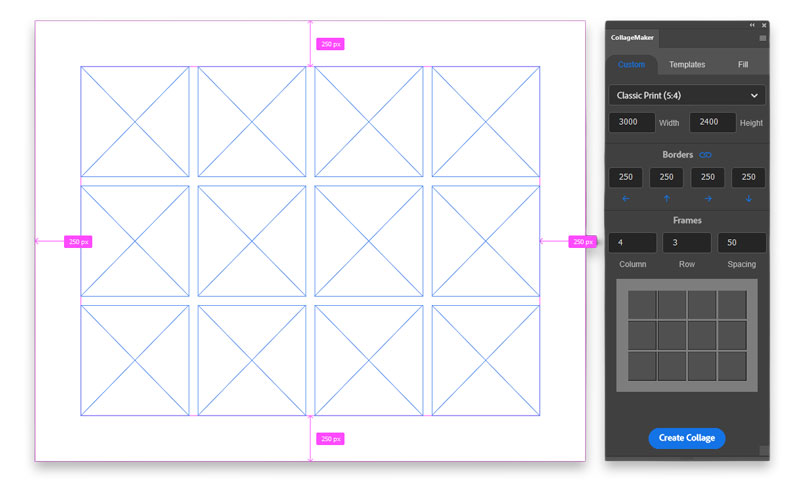
watch: How to Make Photo Collages in Photoshop – CollageMaker Plugin
2. Adjusting the layout – where Photoshop craftmanship actually matters
Once the grid exists, the creative part begins.
This is also where many misconceptions appear. Frames in Photoshop cannot be merged or combined.
If you want a larger area inside the layout, the workflow is always the same:
- Delete the smaller frames you don’t need
- Use the Frame Tool to enlarge an existing frame
- Use Snap to align it cleanly to the remaining structure
- Keep layer names consistent so the layout stays manageable
That’s it.
It’s manual work. It’s not glamorous.
And it has nothing to do with the plugin—it’s purely a Photoshop process, as it should be.
This is where layout design actually happens: directly, manually, in Photoshop.
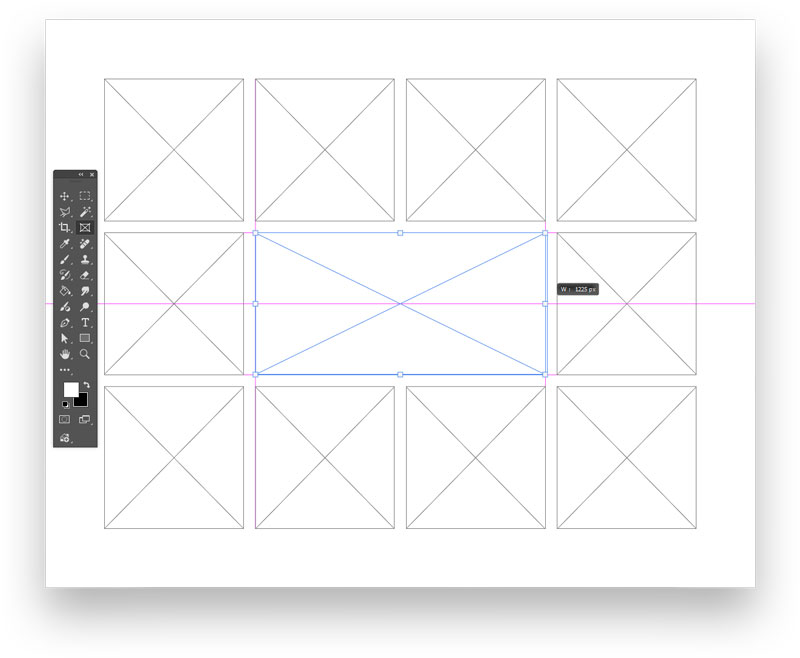
watch: Customize Your Collage Grid in Photoshop
3. Placing images – the point where most collages fall apart
This is where things usually take a turn.
Placing images manually is—let’s be honest—not creative work. It’s repetitive labor:
Drag in image → Scale → Adjust → Undo → Scale again → Align → Repeat → Repeat again → Question your life choices 🤯
It’s manageable with a handful of images.
It becomes unbearable with dozens.
And with a hundred images? Nobody should ever have to do that manually.
This is the moment where automation actually makes sense.
CollageMaker handles the mechanical part Photoshop doesn’t: placing images consistently, either randomly or alphabetically, as Smart Objects or Linked Files.
You still design the layout.
The plugin just takes over the heavy lifting of filling it.
4. Repeating collages consistently – Photoshop’s Achilles’ heel
Photoshop is excellent for unique, one-off layouts.
But the moment you need variations or series—contact sheets, social media sets, themed boards, client previews—the workflow becomes painfully repetitive:
Open template → replace images → repair layout → export → repeat.
No consistency.
No automation.
No system for batch work.
And that’s why features like template saving, automatic frame renaming, captions, face filtering, and the batch mode make such a difference. Not because they add “creativity” but because they reduce unnecessary labor. They make collages repeatable, scalable, and significantly faster to produce.
Final thoughts – Photoshop designs. Automation accelerates.
Photoshop is brilliant, but it leaves a lot of the tedious, repetitive parts entirely to the user.
And that’s exactly why collages so often escalate into time sinks.
The creative work—layout building, shaping, spacing, styling—belongs in Photoshop.
The mechanical work—filling, sorting, repeating, exporting—does not.
A workflow that combines Photoshop’s creative freedom with a bit of structural automation gives you the best of both worlds:
- Precision without micromanagement
- Creativity without frustration
- Speed without cutting corners
Collages stop being a chore and become what sie eigentlich sein sollten:
a visual way to tell a story — not a test of endurance.
Availability
CollageMaker can be downloaded via our shop, or directly from the Adobe Creative Cloud Marketplace for users who prefer native distribution.
- Shop Product Page: https://the-orange-box.com/product/photo-collage-maker/
- Official Product Website: https://collagemaker.the-orange-box.com/
- Adobe Creative Cloud Marketplace: https://exchange.adobe.com
Hi, I’m Mic, creator of The Orange Box. I develop Photoshop tools that simplify workflows and deliver high-quality results with one click — practical, modern, and built for real everyday use.