
Script Pilot — Organize, Edit, and Batch-Run Your Photoshop Scripts
Are you tired of scrolling through endless, unorganized lists to find the one Photoshop script you need? Welcome to Script Pilot.
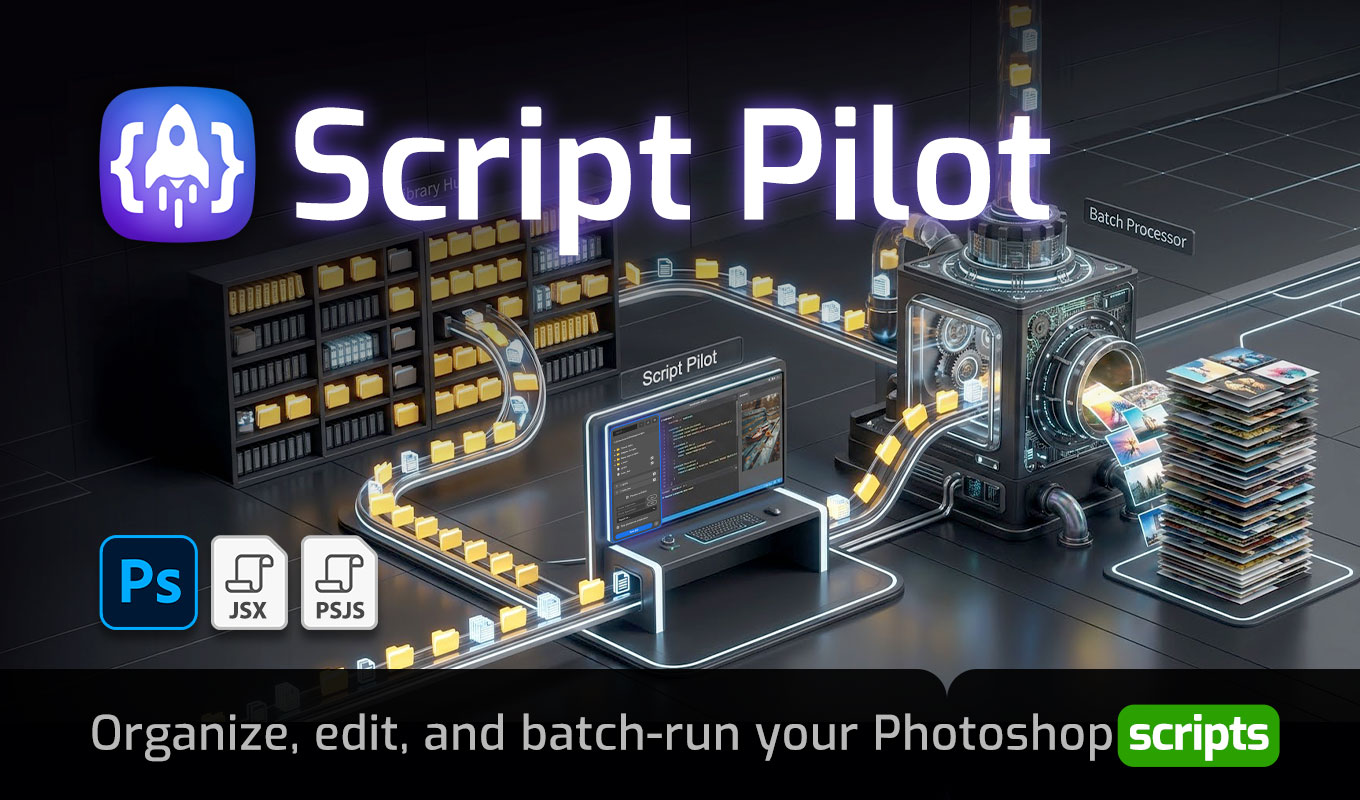
Script Pilot is the ultimate script manager and automation hub built specifically for modern Photoshop. It brings order to your chaos with an intuitive library, an integrated code editor, and a powerful batch processor.
Stop switching between external editors and Photoshop, and stop running scripts one by one. Take full control of your workflow, edit code on the fly, and process entire folders of images automatically using Script Pilot.
See Script Pilot in action: Watch how easily you can organize your library, edit code live, and automate a whole folder of images in seconds.
Key Features of the Script Pilot Manager
✔️ Advanced Library & File Organization
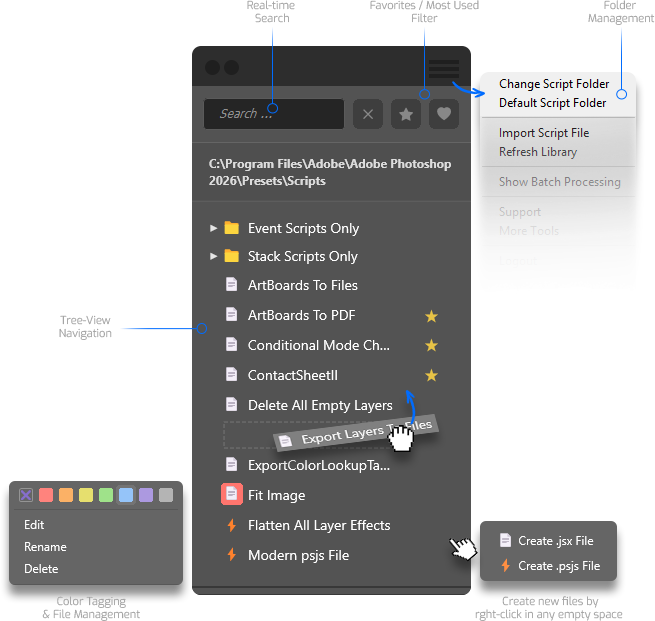
Navigate your JSX and PSJS scripts like a pro. With a clear, collapsible tree-view, Script Pilot lets you connect your default or custom script folders effortlessly.
Intuitively drag & drop files, mark your top tools as Favorites (⭐), and automatically track your “Most Used” scripts (❤️). Can’t find something? The lightning-fast real-time search brings it up instantly.
✔️ Visual Color Tagging
Bring visual logic to your workflow. Easily assign one of 7 vibrant color labels to your scripts and folders via the right-click context menu. Instantly distinguish your export scripts from your retouching scripts at a single glance.
✔️ Multi-Format Support & Instant Execution
Whether you are using classic ExtendScript (.jsx) or building tools with the modern UXP architecture (.psjs), Script Pilot handles both seamlessly.

Right-click in any empty space to instantly create new files from scratch, or rename, delete, and import scripts directly from the panel. Want to run a script quickly? Just double-click any file in your list to instantly execute it on your active document.
✔️ Integrated Code Editor & Live-Testing
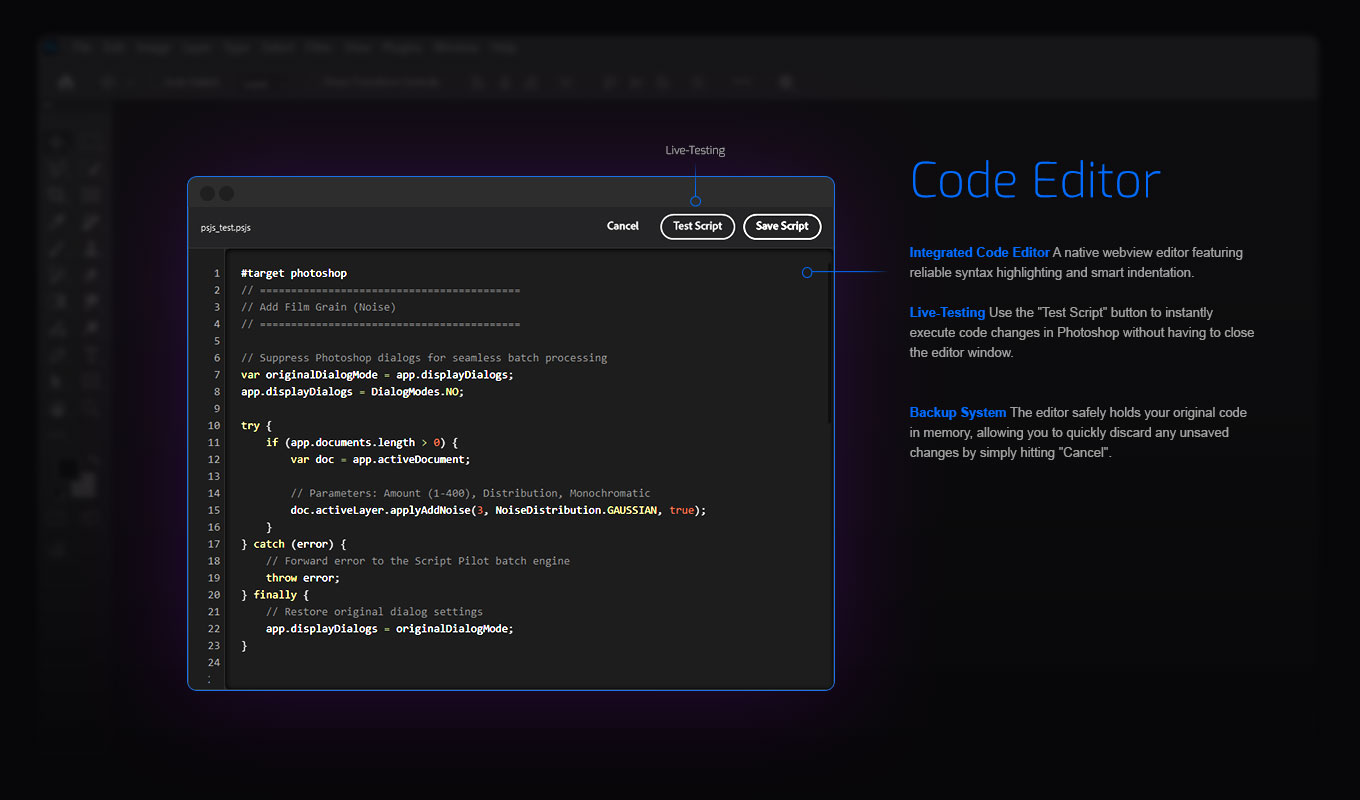
Say goodbye to external code editors. Script Pilot features a native webview editor complete with reliable syntax highlighting and smart indentation.
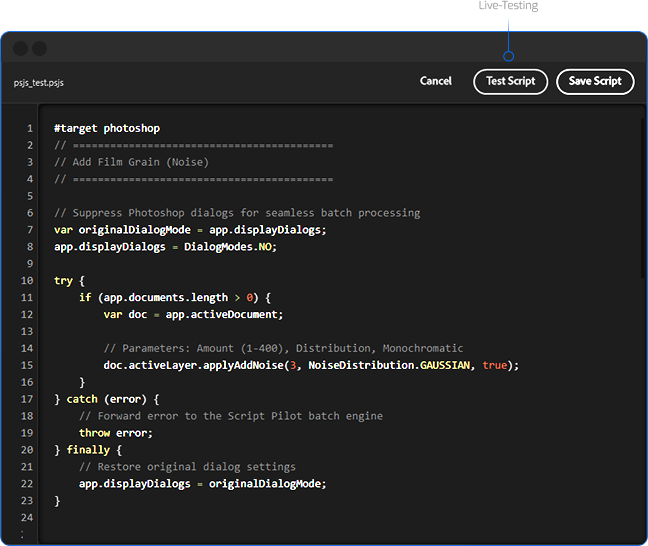
Made a tweak? Hit the “Test Script” button to instantly execute code changes right inside Photoshop without closing the editor window.
✔️ Advanced Folder Batch Processing
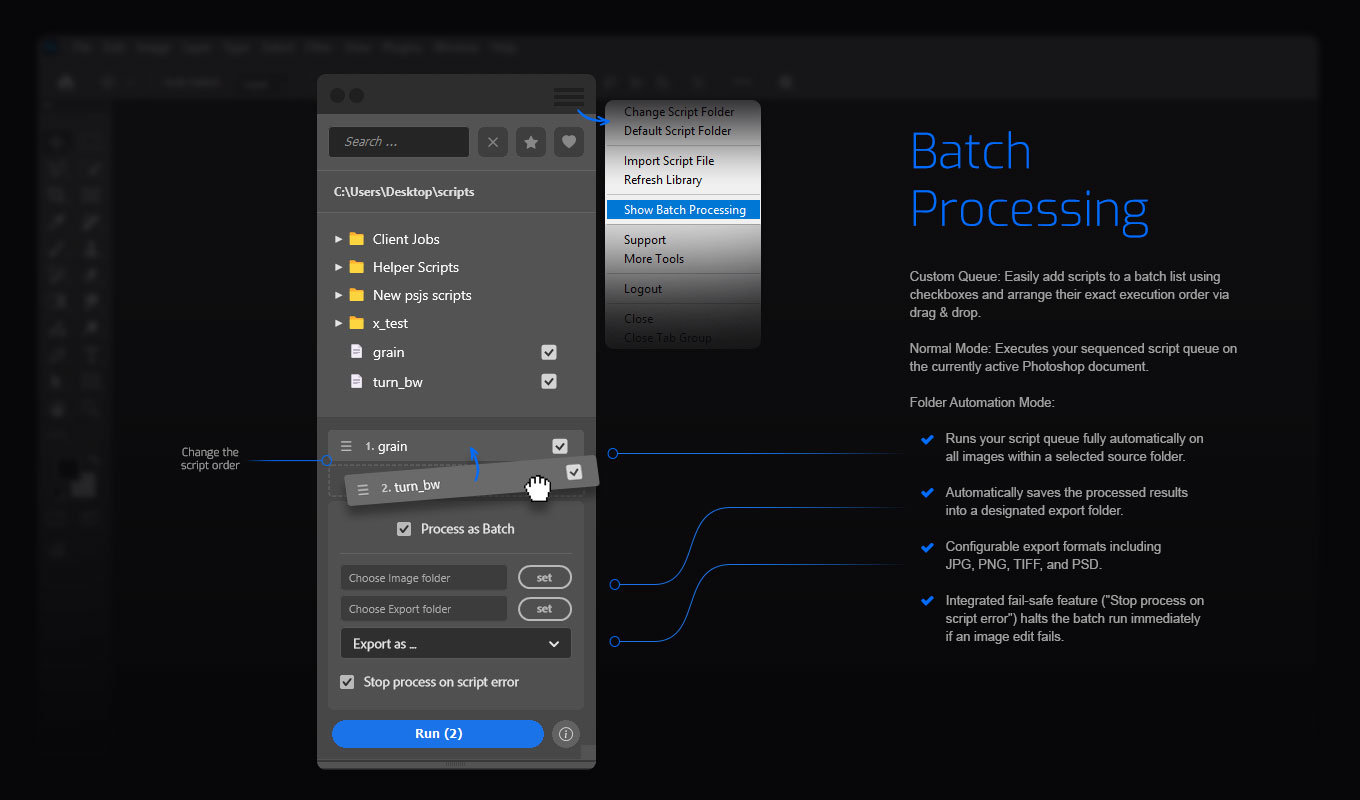
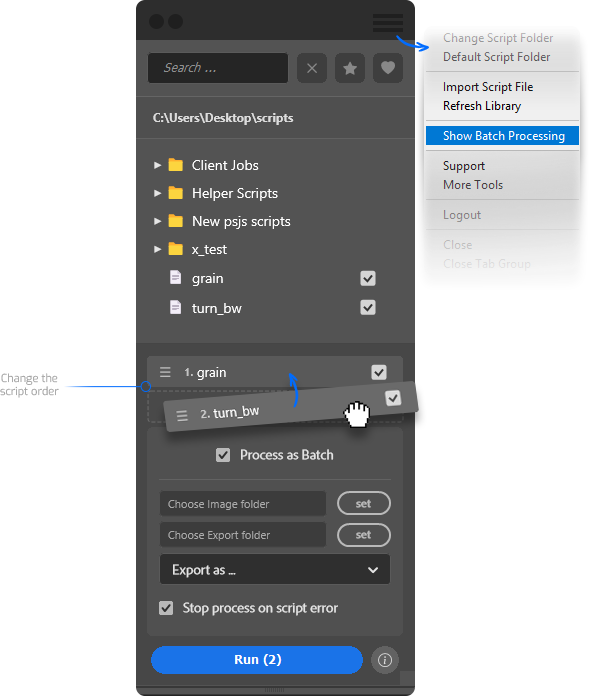
Turn any script into a mass-automation tool. Add multiple scripts to your custom queue using simple checkboxes and arrange their execution order via drag & drop.
Run the queue on your active document, or use Folder Automation Mode to fully process entire folders. Script Pilot will automatically open the images, run your scripts, and save the results into a designated export folder (JPG, PNG, TIFF, or PSD).
Popular Workflows You Can Build in Minutes
Script Pilot is designed to adapt to your specific needs, saving you hours of tedious manual work. Here is how our users utilize it every day:
✔️ The “Library Cleanup” (Ultimate Organization)
Connect your messy downloads folder, create custom categories, and drag & drop your scripts into place. Tag all your resizing scripts in blue, mark your daily retouching scripts as favorites, and never waste a second searching for a tool again.
✔️ The “Developer Fast-Track” (Live Editing)
You are writing a new script but the coordinates are slightly off. Instead of jumping between VS Code and Photoshop, just right-click the script in Script Pilot, open the integrated editor, change the variable, hit “Test Script”, and see the result instantly. If you mess up, just hit “Cancel” to revert to your safe backup.
✔️ The “Heavy-Duty Batch Automator”
You have a custom watermark script and 500 images. Check the box next to your script to add it to the Script Pilot Batch Queue. Select your source folder, choose an export folder, pick “JPG” as your format, and hit Run. The plugin processes the entire folder automatically and even stops safely if an image throws an error.

How Script Pilot Works
1️⃣ Open Script Pilot inside Photoshop and choose your script folder.
2️⃣ Organize your workflow using drag & drop, color tags, and favorites.
3️⃣ Run instantly: Simply double-click any script in the list to execute it directly on your open document.
4️⃣ Need a new tool? Right-click in the empty space to create a new file, or right-click an existing script to edit and test the code directly in the panel.
5️⃣ Check the boxes next to your scripts to build a custom execution queue for folder automation.
This unified approach ensures your assets are always organized and your automation tools are just one click away.
Why Creators Love Script Pilot
✔️ Centralized control: All your automation tools organized in one clean interface.
✔️ Instant execution: Trigger complex scripts with a simple double-click.
✔️ Create on the fly: Quickly generate new .jsx or .psjs files with a right-click in any empty area.
✔️ Huge time saver: The batch processor turns single-use scripts into mass-automation tools.
✔️ Frictionless editing: The built-in code editor lets you tweak and test scripts instantly.
✔️ Unbreakable workflow: State persistence remembers your exact setup and collapsed folders for your next session.
✔️ Reliable & safe: Offline authentication allows you to work securely for up to 7 days without an internet connection.
Who It’s For
✔️ Photographers & Retouchers dealing with high-volume edits.
✔️ Graphic Designers tired of repetitive document setups.
✔️ Plugin Developers & Scripters who need a fast live-testing environment.
✔️ Agencies & Studios managing large shared script libraries.
✔️ Anyone who wants to maximize Photoshop’s automation capabilities.
If your creative process is slowed down by searching for files or running scripts manually one by one, Script Pilot is your perfect solution.
Made for Creators, on Mac and PC
Built with modern Adobe UXP architecture, this plugin is fully compatible with Photoshop 2024 and newer.
It runs natively on Apple Silicon Macs, including the M1, M2, and M3 series, and delivers the exact same seamless, lightning-fast experience on Windows PCs. Advanced error handling intelligently intercepts OS restrictions to ensure a stable experience while using Script Pilot.

Common Questions (FAQ) about Script Pilot
✔️ How do I run a script on a single image?
The easiest way is to open your image in Photoshop, find your script in the Script Pilot list, and simply double-click it. It will execute instantly.
✔️ How do I create a new script file?
Just right-click anywhere in the empty space of your library view. A context menu will appear, allowing you to instantly generate a new, blank .jsx or .psjs file right in your active folder.
✔️ Can I use a custom folder for my scripts?
Yes! You can easily switch between the default Photoshop system folder and any custom directory (like your Documents or a shared Dropbox folder) to keep your scripts safe and organized.
✔️ Does the editor support modern Photoshop scripts?
Absolutely. The integrated code editor and execution engine fully support both classic ExtendScript (.jsx) and the modern UXP architecture (.psjs).
✔️ Do I need an internet connection to use it?
Script Pilot features a modular, offline-friendly login system. It caches your license locally, allowing you to work completely offline for up to 7 days without any interruptions.
✔️ Can I run multiple scripts in a specific order?
Yes! You can add multiple scripts to the Batch Queue and simply drag & drop them into your desired execution order before hitting run.
✔️ How does the Batch Folder Automation work?
It’s incredibly easy. Select a source folder with images, pick a destination folder, and choose your export format (JPG, PNG, TIFF, or PSD). Script Pilot will open each image, apply your queued scripts, save the result, and close the file automatically.
✔️ Does it work on both Windows and macOS?
Yes, it is built on the modern UXP framework and works natively on both operating systems, ensuring a smooth experience regardless of your preferred platform.
Explore all our Photoshop tools